
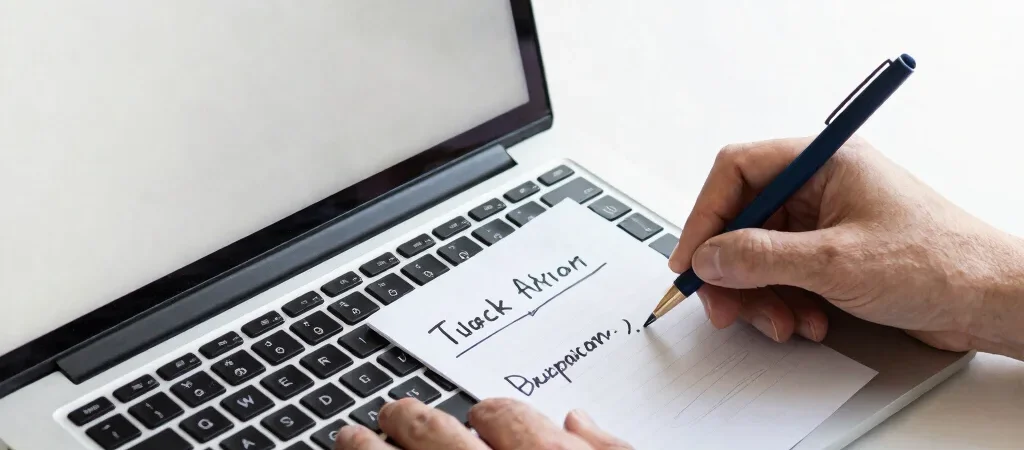
A page looks wrong, so the instinct is to change several settings until it looks right again. Resist that for a moment. A careful troubleshooting note—what you expected, what happened, and when it began—can narrow the search without adding new variables.
Describe the Visible Problem
Write down the page or task involved, the result you expected, and the result you actually see. Include the exact error message if there is one, and note whether the issue happens every time or only under certain conditions. Avoid putting passwords, private customer details, or other sensitive information in your notes.
Look for a Recent Change
Think back to the last time the page worked as expected. Did you update WordPress, a plugin, or a theme, edit the page, or change a setting? A connection in time is a clue, not proof, so record it without assuming that the latest change must be the cause.
Test Without Guessing
Revisit the same page and repeat the action that produces the problem. If you can safely compare the page in another browser or device, note whether the result changes; this can help distinguish a site issue from a display-specific one. Make one change at a time, and know how to undo it before altering important settings or disabling a plugin.
Turn Notes Into a Question
Search documentation using the task and the exact symptom, rather than a broad phrase such as “WordPress broken.” You can also ask ChatGPT to suggest possible causes from your notes, but treat its ideas as checks to verify, not instructions to apply blindly. A clear next question is progress, even before you have a fix.